Features
What Switchboard does that the apps it replaces don’t, one page for each feature.
Guardrails
Guardrails
A guardrail is a macro that runs before a key, a click or ⌘Q reaches the app.
Aims at the element
Elements
Record a click and Switchboard remembers the element: its role, its name, its identifier and its place in the window.
Why it didn’t fire
Traces
Every run leaves a trace with each step’s status, how long it took and the values it saw.
Agents and MCP
Agents
Switchboard has an MCP server built in.
Any condition is a trigger
States
Switchboard can check the front app, a window title, the network, the battery, a file, an element on screen, a variable or a script, and it can watch any of them, so the change itself is the trigger.
Every app, API and command
Steps from anywhere
Switchboard reads what your apps, web services and command-line tools say they can do and turns each action into a step with its own form.
Safari and Chrome
Browser
Switchboard has a small extension for Safari and Chrome, and for Arc, Brave, Edge and Vivaldi.
Any device
iPhone and Watch
The iPhone app is a remote.
AI that shows its work
AI
Describe a macro in a sentence and read what Claude wrote before anything is added or run, or point Fix with AI at a failed run’s trace.
The palette
Palette, snippets, clipboard
⌥Space opens a palette over whatever you’re doing.
Keyboard and trackpad
Keyboard and gestures
You can remap keys, give Caps Lock two jobs, turn Hyper or Fn into a keyboard of layers, and run a macro on a trackpad gesture.
The small tools
Everyday tools
These are the utilities you would otherwise install one at a time: Paste as, a selection bar, click by letters, capture text, dictation, drop targets and a shelf, keep awake, the current thing and run on another Mac.
Extensions
Extensions
Extensions are written in TypeScript or Swift.
Imports from 13 apps
Imports
If you’re buying Switchboard you’re probably leaving something, and I’d rather you didn’t have to start over.
Site Kits and App Kits
Kits
A kit is a group of macros scoped to one website or one Mac app, with a folder of real files beside them.
Three ways to make a macro
Record it
Press ⇧⌘R and do the thing once. Each click is recorded as a click on an element, and Generalize can turn the recording into a macro with inputs and a loop over whatever repeated.
Describe it
Press ⌃⌘M and write a sentence. The draft comes back as ordinary steps you can read and edit, and nothing runs until you add it.
Write it
Finish a sentence to add a step: what it is about, then what to do, previewed as you type. Every step has a form, and a dry run shows each value.
- Press ✦G
- If the front app is Safari
- Read the clipboard into text
- Show “Clipboard has {{ length(text) }} characters”
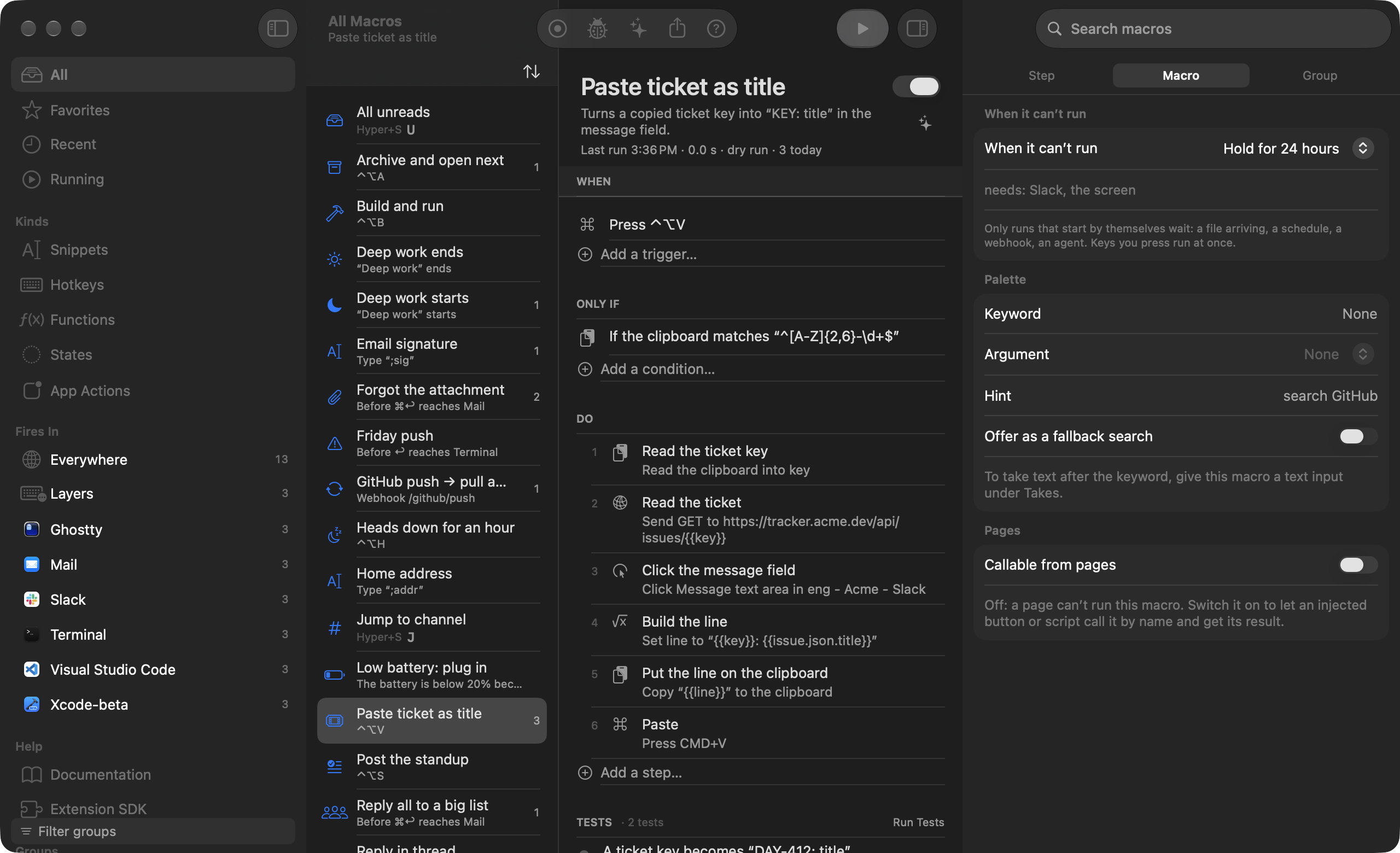
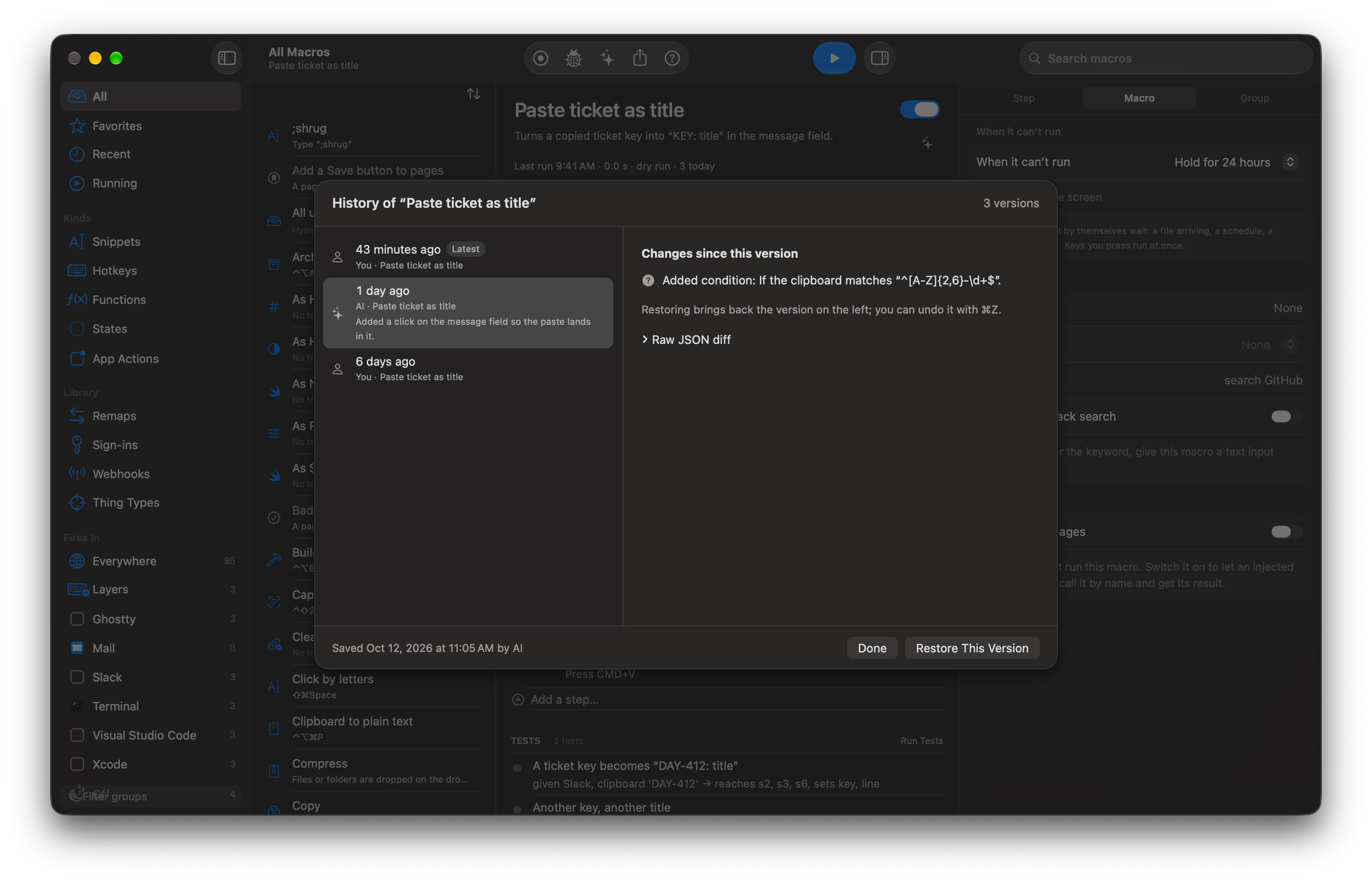
A macro is a text file. Every save is a version, you can diff it, share it by link, or keep it in git.
Safe to change
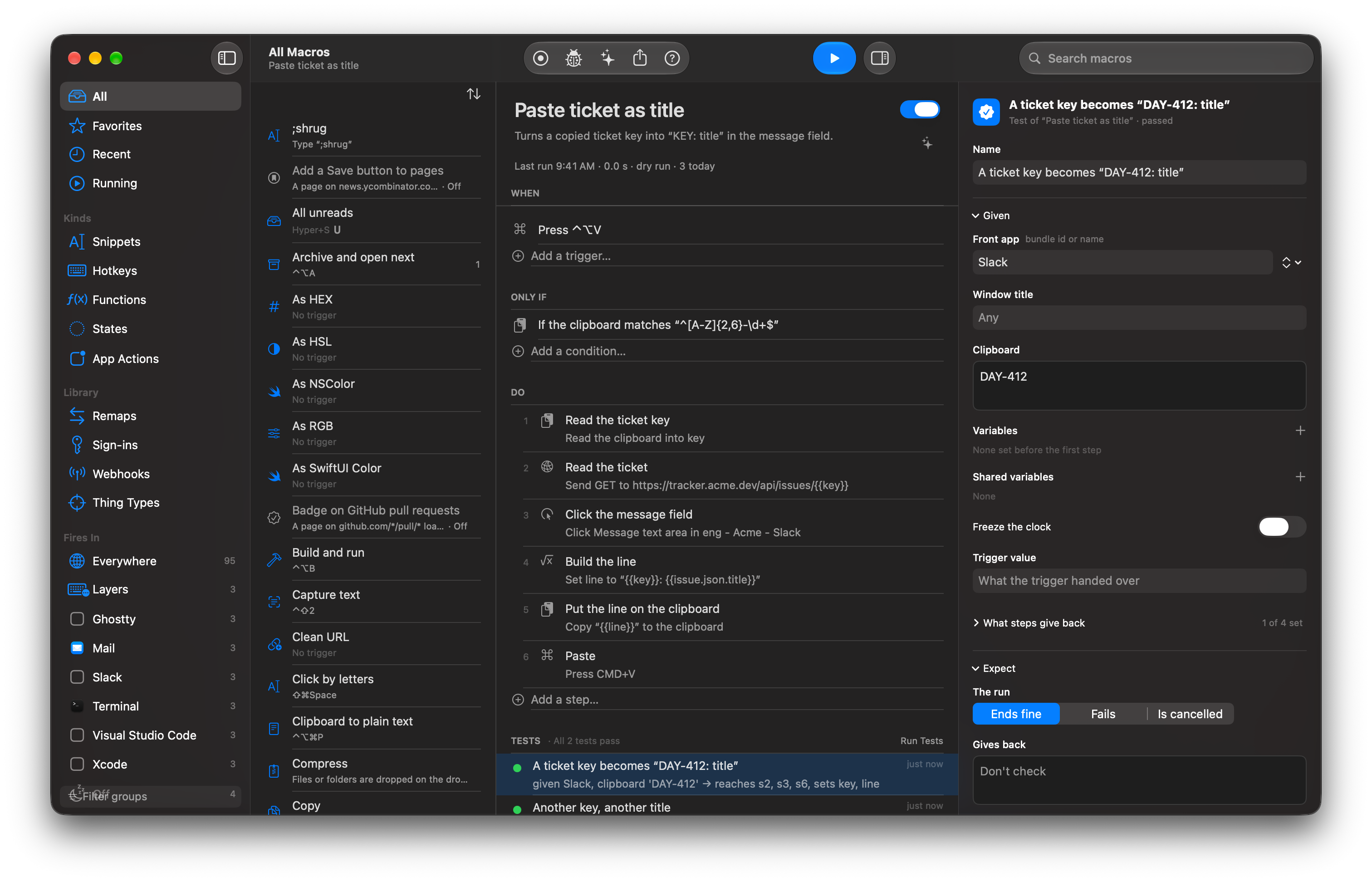
Every save is a version you can restore with ⌘Y. A test runs sealed from your Mac, and you can save one from a real run in a single click. Checks look for the buttons again in case a macOS update moved them.
Everything it can do
Every step, trigger, condition, function and token, generated from the app’s own reference. Each one links to its page in the docs.
Steps 165Triggers 49Conditions 43Functions 191Tokens 11For scripts and agentsGuides 57
Steps 165
Agents
- Call an MCP tool Call tool on serverCalls a tool on another MCP server you added in Settings › Agents & MCP and keeps what it returns.
- List an MCP server's tools List the tools of serverLists the tools an MCP server offers, with their inputs and whether your macros may call them.
- Read an MCP resource Read uri from serverReads one resource from an MCP server you added in Settings › Agents & MCP and keeps its text, or its parsed JSON.
Apps
- App commands Switch to appSwitches between apps, shows or hides them, brings their windows forward, reopens them, or quits the front app and the others.
- App or window switcher Show a kind switcherShows a list of windows, running apps or installed apps and switches to, or launches, the one you pick.
- Read a value from an app Read from of appReads one number or word an app shows right now (the red number on its Dock icon, a menu bar item, a window title, a script's answer, a file) and hands it to the next steps.
Apps & windows
- Activate app Activate appBrings an app to the front, launching it first if it is not running.
- Answer a dialog Answer the title dialog and press pressWaits for a sheet, dialog or file panel, fills it in by the labels beside its fields, and presses a named button.
- Apply a kit's settings preset Apply the preset nameApplies, or undoes, one of an App Kit's settings presets: a named set of an app's preferences and controls.
- Choose from a context menu In locator's menu choose itemOpens an element's right-click menu through accessibility and chooses an item by its title, submenus included, without moving the pointer.
- Choose menu item Choose menu item in appChooses an item from an app's menu bar by its path, such as File, Export.
- Click by letters Click an element by lettersPuts a short letter label on every clickable thing in the front window; type the letters to click it, or type a word to search.
- Close window Close the front window of appCloses the front window of the front app, or of the app you name.
- Hide app Hide appHides an app, or every open app except the ones you keep.
- Move or resize window action the windowMoves, resizes, snaps, zooms, minimizes or full-screens the front window.
- Open file or folder Open path with appOpens a file or folder with its default app, or with an app you choose.
- Quit app Quit appAsks an app to quit, or quits every open app except the ones you keep.
- Read all the text of an app's document Read the text of locator into intoReads the whole text of a document, note, field or terminal, what is on screen of it, or what is selected, with no limit on length.
- Read field value Read locator into intoReads the text of a field, label or other control into a variable.
- Read or save the images of an app's window Save the images of locator to saveLists the images in a window with their descriptions, and saves the visible ones as PNG files.
- Read the links of an app's window Read the links of locator into intoLists every link in a window (or under one element) with its address, in reading order, one per address.
- Read the rows of an app's list Read the rows of locator into intoReads the rows of a table, outline or list in any app (Mail's inbox, a Finder list, Numbers, Activity Monitor) as named, typed fields.
- Set a control Set locator to toSets a checkbox, switch, slider, pop-up menu, tab or text field to a state instead of clicking it, and does nothing when it is already there.
- Set field value Set locator to valueSets the value of a text field or other control directly, without typing.
- Wait Wait pause secondsPauses for a number of seconds, or waits until an element, window or app appears or goes away.
Clipboard
- Clipboard Set the clipboardSets, reads or clears the clipboard, and reads its history and named clipboards.
Control
- Break out of repeat Break out of the loopLeaves the innermost Repeat loop and carries on after it.
- Collect a list Make a list of kind into intoBuilds a list (files, folders, apps, windows, text pieces, numbers and a few other kinds) for a Repeat to go through.
- Group Group steps as nameHolds a list of steps together under one name so they read and fail as a unit.
- If If conditionsRuns one list of steps when its conditions pass and another when they don't.
- Lock or unlock action the lock nameTakes or releases a named lock so only one run at a time works on a shared thing.
- Next repeat Skip to the next repeatSkips the rest of this pass of a Repeat loop and starts the next one.
- Repeat Repeat count timesRuns a list of steps a set number of times, once per item in a list, or while conditions hold.
- Retry this loop pass Retry this passRuns the current pass of the enclosing loop again from its first step.
- Return a value Return valueEnds the macro successfully and hands a value back to whoever ran it.
- Save rows to a file or the clipboard Save rows to toWrites a list of rows as CSV, TSV, JSON, JSON Lines or a Markdown table, or puts them on the clipboard as a table.
- Set variable Set name to valueSets, appends to, counts up, removes or edits inside a variable.
- Stop macro Stop the macroEnds this macro's run right now and marks it cancelled.
- Turn off macro Turn off macroTurns a macro, or a whole macro group, off so its triggers stop firing.
- Turn on macro Turn on macroTurns a macro, or a whole macro group, on so its triggers fire again.
- Wait for a change Wait for what to changePauses until the clipboard, the front window or the screen changes, or fails when it does not within the timeout.
Data
- Get the current thing Get the current thing from sourceReads what you are on (selected text, the Finder selection, the browser tab, the Mail message or the element under the pointer) as a typed thing.
Debugging
- Debugger action Debugger: actionPauses a debugged run before the next step, or leaves a note in the Trace.
- Log message Log textWrites a line of text into the run's Trace.
- Throw error Throw error messageFails on purpose with a message, so the step's failure handling takes over.
Files
- Add Finder tags to a file Add tags tags to pathAdds, removes, sets or toggles a file's Finder tags.
- Copy a file to a folder Copy path to toCopies a file into a folder, or into a subfolder named from its date, name or a counter.
- File operation Move path to destinationCopies, moves, renames, duplicates, trashes, deletes or reveals a file or folder, or creates a new empty file with a free name.
- Get or set a file attribute op attribute of pathReads or changes a file's size, dates, tags, Finder comment, permissions and other attributes.
- Move a file to the Trash Move path to the TrashMoves a file to the Trash, where it can be put back.
- Move or sort a file Move path to toMoves a file into a folder, or sorts it into a subfolder named from its date, name or a counter. The folder is made when it is missing.
- Open Finder selection Open the Finder selection in appOpens whatever is selected in the Finder, optionally with a chosen app.
- Remember a file as handled Remember that path was handledRecords that a rule handled a file, so a later condition can ask when it last did (Hazel's Date Last Matched).
- Rename a file from a pattern Rename path to patternRenames a file from a pattern made of its name, its dates and a counter, keeping its extension.
- Set a file's color label Label path colorSets the Finder color label of a file: red, orange, yellow, green, blue, purple, gray or none.
- Set a file's Finder comment Set the Finder comment of path to textSets or adds to a file's Finder comment, which Spotlight searches.
- Set file icon Set the icon of path to iconGives a file or folder a custom icon from a picture file.
- Show a file in the Finder Show path in the FinderShows a file selected in a Finder window.
- Split path Split path into partsSplits a file path into its folder, name, name without extension and extension.
- Unzip an archive Unarchive pathExpands a zip into a folder, next to it by default.
- Zip a file or folder Archive path as a zipCompresses a file or folder into a zip next to it, or in a folder you choose.
Images
- Work with a picture Work on a picture: opMakes, edits, saves, captures, reads text from and finds pictures, on the clipboard, in a named clipboard or in a file.
Interface
- Choose menu item by name Choose menu item in appFinds a menu item anywhere in an app's menu bar by its name and chooses it, or lets you pick one from a list.
- Press button by name Press the button name in appPresses a button (or increments, decrements, cancels or opens the menu of a control) in the front window by its name or accessibility id.
Keyboard
- Dictate Dictate and type what I sayListens, turns your speech into text on this Mac, cleans it up, and can type it where you were typing.
- Press keys Press keysPresses a key or shortcut, such as ⌘C, Return or F5, optionally several times.
- Press or hold modifiers action modifiersTaps, holds or releases modifier keys such as Command, Option, Control, Shift and Fn on their own.
- Type text Type text into the front appPuts text into the front app: inserted through accessibility when the app allows it, else pasted or typed.
Macros
- Cancel other macros Cancel running macroStops the running copies of another macro, or every other running macro.
- Choose a macro to run Choose a macro to run from macrosShows a list of macros, then runs the one you pick.
- Open a layer Open the layer of groupOpens a group's layer so its macros answer to bare keys, from a palette row, a gesture or another layer's key.
- Run a macro later Run macro later at atParks a run of another macro until a time, or until a condition becomes true, and returns at once; it survives restarts.
- Run macro Run macroRuns another macro, waits for it to finish and hands back what it returned.
- Wait until a condition holds Wait until conditionWaits for any condition to become true, using the engine's watcher instead of a polling loop; returns whether it was met and how long it took.
Mail & messages
- Add calendar event Add title to the calendarCreates an event in the Calendar app, with optional length, repeat and alert.
- Send mail Send mail to toSends an email through the Mail app, or opens a draft for you to finish.
- Send message Send text to toSends an iMessage or text message through the Messages app.
- Set mail status Mark the selected mail as statusMarks the messages selected in Mail as read, flagged, junk, deleted or archived.
Media
- Music and player control Control the music player: commandControls Music, Spotify or QuickTime Player: play, pause, skip, volume, rating and the current track.
- Send MIDI Send MIDI kindSends a MIDI note, controller change or raw message to your MIDI devices.
- Switch audio device Switch audio kind to deviceSwitches the default sound output, input or effects device, or mutes one.
- System volume op the volumeSets, raises, lowers or mutes the Mac's output volume.
Mouse
- Click Click locatorClicks an element, a picture on screen, or a position, with the left, right or middle button.
- Drag mouse Drag the mouse from from to toPresses the mouse button, drags the pointer to another place, and releases it.
- Hold or release mouse button action the button mouse buttonPresses a mouse button down at the pointer and holds it, or lets it go.
- Move pointer by Move the pointer by dx, dyMoves the mouse pointer by a distance from where it is now.
- Scroll Scroll by dx, dyScrolls with the mouse wheel by a number of pixels, optionally at a position.
Prompts
- Choose a file or folder Choose a file or folder into intoShows the macOS open or save panel and stores the path you pick.
- Pick a screen point or rectangle Pick a screen modeAsks for a point or a rectangle in screen coordinates and stores it as text.
Scripts
- Call MCP tool Call tool on serverCalls a tool on an MCP server and stores what it returns.
- Run AppleScript Run AppleScript scriptRuns AppleScript with osascript and captures its result.
- Run Automator workflow Run the Automator workflow pathRuns an Automator workflow, a Quick Action or an application workflow, with the system's automator tool, optionally passing it input and capturing its output.
- Run JavaScript Run JavaScript scriptRuns a JavaScript function body inside Switchboard, with your variables as `vars`, and returns its result.
- Run JXA script Run JXA scriptRuns JavaScript for Automation with osascript to control Mac apps.
- Run Python script Run Python scriptRuns Python 3 source and captures what it prints.
- Run shell script Run shell script scriptRuns a shell script with zsh, bash or sh and captures its output.
- Run Shortcut Run the shortcut nameRuns a shortcut from the Shortcuts app, optionally passing it input and capturing its text output.
- Run Swift script Run Swift scriptRuns Swift source with the swift interpreter and captures what it prints.
Show & ask
- Ask AI about the screen Ask AI question about the screenAsks a model a question about what is on the screen or in a region of it.
- Ask AI to choose Ask AI to choose from optionsAsks a model to pick one option from a list based on your prompt.
- Ask AI to do it with tools Ask AI to do prompt with toolsRuns a short, capped loop where a model uses tools you name (macros, extension actions, MCP tools) to reach an answer.
- Ask AI to extract Ask AI to extract prompt into intoAsks a model to pull structured values out of text, shaped by a schema.
- Ask AI to rewrite Ask AI to rewrite text as promptAsks a model to rewrite text following your instruction.
- Ask for input Ask textAsks you for text, a choice from a list, or several fields in a form, and stores the answer.
- Ask later (Inbox) Ask question laterParks a question in the Inbox instead of a modal; the macro waits for any button, on the Mac or the iPhone, whenever you get to it.
- Ask Send anyway? (guardrail) Ask first, saying reasonEnds a guardrail's check with a small panel at the pointer. One button goes ahead, the other cancels, and Return cancels.
- Block it (guardrail) Block it, saying reasonEnds a guardrail's check and drops the key, click or Quit and shows the reason for two seconds.
- Close a panel Close panel idCloses a panel that is showing, and answers a step still waiting on it.
- Count unsaved windows Count unsaved windows of appCounts the windows of an app that have unsaved changes, for a guardrail that asks before you quit.
- Highlight area Highlight areaDraws a red outline over the screen, a window or a rectangle for a moment, then removes it.
- Let it through (guardrail) Let the key throughEnds a guardrail's check and lets the key, click or Quit through.
- Read a panel Read panel idReads what is entered in a panel that is showing: its fields, toggles, sliders, pickers and chosen table rows.
- Read recent notifications Read the app notifications from the last withinReads the notifications the Mac delivered lately, newest first, so a macro can summarise what you missed.
- Read text on screen Read the text in regionReads the words, QR codes, barcodes or a table in part of the screen, and stores the text.
- Read the mail being written Read the mail being written into intoReads the message being written in Mail's front compose window: who it is to, from whom, the subject, the body and the attachments.
- Say aloud Say text aloudSpeaks text with a macOS system voice.
- Show a panel Show panel titleShows a small window you describe in JSON: text, pictures, buttons, fields, sliders, tables and charts, drawn natively.
- Show an HTML prompt Show an HTML prompt titleShows a web page as a prompt, for Keyboard Maestro's Custom HTML Prompt in an imported macro. New macros use Show a panel.
- Show message Show text on screenFlashes a short message on screen for a moment, or keeps a progress message up for the whole run.
- Show notification Show notification titlePosts a macOS notification with a title, an optional body and an optional sound.
- Update a panel Update panel idChanges a view in a panel that is showing: a number, some text, a table's rows, a chart's points.
System
- Change screen brightness Change brightness by byRaises or lowers the screen brightness by a step, or by a fraction of the full range.
- Get current location Get the current location into intoReads the Mac's current latitude, longitude and accuracy from Location Services.
- Keep awake Keep the Mac awake for forHolds the Mac (and optionally the display) awake for a time, until a time, or while a condition stays true, and lets go on its own.
- Light or dark mode Switch to mode modeSwitches macOS to dark mode or light mode, or toggles between them.
- Set desktop picture Set the desktop picture to pathSets the desktop picture on one screen or on every screen.
- Set screen resolution Set the resolution to width by heightChanges a screen's resolution to a width and height that the display offers.
- Sleep, restart or log out action the MacSleeps, restarts, shuts down, logs out, locks the screen, or controls the display, screen saver and disc tray.
- Switch keyboard layout Switch keyboard layout to nameSwitches the active keyboard layout to one that is installed, by name.
- Switch network location Switch network location to nameSwitches to a named network location, such as Automatic or Office.
- System beep BeepPlays the macOS alert sound.
Text
- Find in text Find kind in textFinds dates, links, emails, phone numbers, addresses, flights, colours, numbers, money, lengths of time, hashtags or mentions in text.
- Transform text Transform text with opApplies one text filter (case, quoting, encoding, paths, URLs, counts, substring, calculation and more) and returns the result.
Variables
- Keychain password op the keychain item serviceReads a password from your login keychain into a variable, or saves one to it.
- Variables from JSON Make variables from jsonTurns each top-level key of a JSON object into its own variable.
Web
- Add or find a bookmark op a bookmarkAdds, searches or removes bookmarks in a Chrome-family browser.
- Ask in the page Ask in the pageShows a form over the page, waits for Submit, and returns the values.
- Call an app and read its answer (x-callback-url) Call url and read its answerOpens an app's x-callback-url address and waits for the app to send its answer back, so Drafts, Bear, Things, Ulysses, Shortcuts and others work both ways.
- Click on the page Click selector on the pageClicks an element on a page, after waiting for it to be there and enabled.
- Control browser In the browser, command urlControls Safari or Chrome: tabs, windows, the page address and title, links, forms and fields.
- Download a file in the browser Download urlDownloads a file with a Chrome-family browser and returns its path when it is done.
- Extract links, a table or the article Extract the kind from the pagePulls a known shape out of a page: its links, images, first table, meta tags, structured data, readable article or the article as Markdown.
- Fill in the page's fields Fill in the page's fieldsFills many fields of a form in one step, and can submit it.
- Focus a field or element Focus selectorMoves focus to an element, and can select its text.
- Highlight on the page Highlight text on the pageMarks elements or every occurrence of some text on the page, like find in page.
- Keep a record in the kit op key in collectionReads, saves, deletes or lists the records a Site Kit keeps (notes, counts, what you saw last), shared with the kit's pages in every browser.
- Make a request from the page Fetch url from the pageSends a request from inside a tab, with that site's cookies, so its own JSON API answers as it does for the site.
- Open a page in a background tab Open url in a background tabOpens an address in a tab you don't look at, waits for it, and gives later steps its tab id.
- Open URL Open urlOpens a URL in the default browser or another app you name.
- Press keys in the page Press keys in the pageSends key events to the focused element or to an element.
- Put CSS, HTML or JavaScript in the page Put code in the pagePuts CSS, HTML or JavaScript into a web page, now or for a whole site, with the page API for talking back.
- Read from the page Read what of selectorReads text, HTML, a value, an attribute or the position of an element; with all, a list.
- Read or write the page's storage op key in the page's area storageGets, sets, deletes or lists the page's own localStorage or sessionStorage.
- Reply to webhook Reply to the webhook with statusSets the answer to the webhook request that started the macro, when the trigger waits for a reply.
- Run JavaScript in browser Run script in the browserRuns JavaScript in the current tab of Safari or Chrome and returns the result.
- Scrape a page into rows Scrape selector into intoTakes every item on a page as a row (fields, numbers, dates, pagination), from a tab you never look at or from a plain fetch.
- Screenshot the page Screenshot the pageSaves the visible tab, or one element of it, as a PNG.
- Scroll the page Scroll the page to toScrolls the page to the top, the bottom, an element or a position.
- Search the browser's history Search the history for searchSearches a Chrome-family browser's history.
- Send data to the page Send name to the pagePushes data to the page's switchboard.on listeners, live.
- Send HTTP request Send method request to urlSends an HTTP or HTTPS request and returns the status, headers and body.
- Show a notice in the page Show text in the pageShows a small notice inside the page.
- Snapshot the page for an agent Snapshot selector of the pageThe page's accessibility tree as compact text with a ref on every node you can act on.
- Take injected code out of the page Take id out of the pageRemoves what browser.inject put in a page, by its id.
- Work with tabs and windows op tabsLists, opens, focuses, closes, reloads, moves and groups tabs in any connected browser.
Triggers 49
Agents
- An MCP resource changes uri changes on serverRuns the macro when a resource on one of your MCP servers changes: a pull request, an issue, a database row, a file the server exposes.
Apps
- A form field takes focus A kind field takes focusRuns the macro when an email, name, address, phone or similar text field takes focus in any app or web page.
- A reading from an app changes name in kit changesRuns the macro when a number or word an app shows (unread count, a label, a script's answer) changes, goes up or down, appears, disappears or crosses a limit.
- An error dialog appears An error dialog appears in appRuns the macro when any app shows an alert, sheet or system dialog, with its text and buttons.
- App notification app notifies, saying bodyRuns the macro when any app posts a macOS notification, matched on the app, the title and the body, with the text handed to the macro.
- Application event app launches, quits or comes to the frontRuns the macro when an app launches, quits, comes to the front or goes to the background.
- Window title change The title of app changesRuns the macro when the title of the front window changes, optionally for one app or a matching title.
Apps & windows
- An element in an app changes When locator changesWatches one element of an app (a label, a field, a list, the selection) and runs the macro when its text changes, a new row appears or the selection moves.
Browser
- A browser connects or disconnects A browser eventRuns the macro when a browser extension connects to or disconnects from Switchboard.
- A download starts or finishes A download eventRuns the macro when a download starts, finishes or fails in a Chrome-family browser.
- A form is submitted A form is submittedRuns the macro when a form on a page is submitted, with its fields.
- A kit reads the site's data The site answers patternRuns the macro when a page of a Site Kit's site answers one of its own requests, with the data the answer carries, before the page shows it.
- A page loads, changes or closes A page eventRuns the macro when a page in Safari or Chrome starts or finishes loading, changes its address, comes to the front, closes or fails.
- A page makes a request A page makes a requestRuns the macro when a page finishes a network request, such as an API call, in a Chrome-family browser. Requests are observed, never blocked.
- A page sends an event A page sends the event nameRuns the macro when injected page code calls switchboard.emit, or a button in injected HTML with data-switchboard-emit is clicked.
- A tab opens, plays sound or moves A tab eventRuns the macro when a browser tab opens, starts or stops playing sound, is pinned or unpinned, or moves.
- A web page changes When url changesChecks a page on a schedule and runs the macro when its text, a price, a feed or a list changes, such as a price drop or a new listing.
- An element appears on a page selector appearsRuns the macro when an element appears, disappears or changes on a page, such as a button, a banner or a price.
- You choose a right-click menu item You choose title from the right-click menuAdds an item to the browser's right-click menu under Switchboard, and runs the macro when you choose it.
- You click an element on a page You click selectorRuns the macro when you click an element on a page. The page still gets the click.
- You select text on a page You select text on a pageRuns the macro when you select text on a page and stop for a moment.
Conditions
- A condition becomes true A condition becomes trueRuns the macro when any condition turns true, turns false, or either, instead of only checking it when something else fires.
- A State starts or ends State name turns on or offRuns the macro when a named State, such as Deep work or On the road, turns on, turns off, or either.
- A value changes expression changesRuns the macro when an expression's value is different from the last time it looked: a variable, a sensor reading, the clipboard length, the front app.
Devices
- MIDI message A MIDI message arrives on portRuns the macro when a MIDI device sends a matching note, controller or other channel message.
- USB device key key is pressed on deviceRuns the macro when a key or button on a USB device such as a keypad or macro pad is pressed.
Files & devices
- Device attach or detach A device is plugged in or removedRuns the macro when a USB device is plugged in or unplugged.
- Dropped on the drop panel Files are dropped on the drop panelRuns the macro when files, pictures, folders, text or links are dropped on its tile in the drop panel, the column of targets that slides out when you drag something to the edge of the screen.
- File or folder change A file changes in pathRuns the macro when a file or folder in a watched place is added, changed, removed, renamed, moved or tagged, with patterns, depth, settling, batching and catch-up.
Input
- Before a key, click or quit Before a key or click in appCatches a key press, a click on a button you recorded, or Quit in one app before the app sees it, runs a quick check macro, then lets it through, blocks it with a reason, or asks "Send anyway?".
- Mouse button Mouse button button is pressedRuns the macro when you press an extra mouse button, such as the middle button or a side button.
- Trackpad gesture A fingers-finger kindRuns the macro on a multi-finger trackpad swipe, tap or pinch.
Keyboard
- Hotkey hotkey is pressedRuns the macro when you press a key combination, or tap modifier keys on their own.
- Typed text string is typedRuns the macro when you type a string of characters, in any app.
Network & phone
- Network change The Mac joins Wi-Fi ssidRuns the macro when you join a Wi-Fi network, or when the network becomes reachable or unreachable.
- Phone sensor The iPhone sensor sensor firesRuns the macro when a named iPhone sensor fires; the trigger is stored, but the Mac does not match it yet.
- URL A switchboard link route is openedRuns the macro when a switchboard:// link is opened.
- Webhook A request arrives at routeRuns the macro when something sends an HTTP GET or POST to /hooks/<route>, with a real reply, a URL key for senders that cannot set headers, and optional signature checks.
System
- Clipboard change The clipboard changesRuns the macro whenever the clipboard contents change.
- Idle You are idle for afterRuns the macro once when you have not touched the keyboard or mouse for a set time.
- Mac sleeps The Mac goes to sleepRuns the macro as the Mac is about to go to sleep.
- Mac wakes The Mac wakesRuns the macro when the Mac wakes from sleep.
- Screen locks The screen locksRuns the macro when the screen locks.
- Screen unlocks The screen unlocksRuns the macro when you unlock the screen.
- Switchboard starts Switchboard startsRuns the macro once each time the Switchboard engine starts.
- System event The Mac changes: eventRuns the macro when the Mac's appearance, displays, power source, desktop space, mounted drives or audio output change.
Time
- Repeat every Every every secondsRuns the macro every so many seconds while Switchboard is running.
- Time of day It is atRuns the macro at a time of day, on chosen weekdays, or on a cron schedule.
Windows
- Window moves or resizes The front window moves or resizesRuns the macro when the front window moves or changes size.
Conditions 43
Agents
- An MCP resource says uri on server satisfies expressionPasses when an expression over an MCP resource's current content is true, such as the state of a pull request.
Apps
- A reading from an app is name in kit is valuePasses when a number or word an app shows (its unread count, a label, a script's answer) equals, is above or below, contains or matches a value, or changed recently.
- App running app is runningPasses when an app is running, in front or not.
- Front app app is in frontPasses when the app in front has the given bundle identifier.
- Front window state The front window is statePasses when the front app has a window, and optionally whether that window is full screen or not.
- Window title The front window title matches patternPasses when the front window's title contains, equals or matches your text.
Conditions
- A browser extension is connected A browser extension is connectedPasses while the Switchboard extension of a browser is connected.
- A browser is in front A browser is in frontPasses while a known browser, or the one you name, is the front app.
- A field holds The field field op valuePasses when a form field on the page equals, contains or matches a value, or is empty.
- A page expression is true A page expression script is truePasses when a JavaScript expression evaluated in the page is truthy.
- A tab is open A tab is statePasses when a tab that matches is open, active, loading, playing sound or pinned.
- An element is in a state selector is statePasses when an element on the page exists, is visible, enabled, checked, focused or in view, or is absent.
- State is on State name is onPasses while a named State, such as Deep work, is on; negate it for "not in".
- The page address matches The page address matches a patternPasses when the address of a tab matches a pattern.
- The page says The page says containsPasses when the page text, or one element's text, contains some text or matches a regular expression.
- The page title matches The page title contains containsPasses when the title of a tab contains some text or matches a regular expression.
- The tab is private The tab is in a private windowPasses when the tab is in a private (incognito) window.
Control
- Last action result The last step statePasses when the step that ran just before succeeded or failed.
Data
- AI check AI says yes to promptPasses when an AI model answers yes to your question.
- AI spending AI spent this period is below belowPasses while the AI steps have cost less than an amount in dollars today, this week or this month.
- Clipboard holds The clipboard holds typePasses when the clipboard holds a given type of content, such as text, an image, a file or a URL.
- Compare text left op valuePasses when two values you give it compare the way you ask, such as equal, greater than, contains or matches.
- Current thing The current thing is a typePasses when what you are on (the selection, the Finder selection, the browser tab, the Mail message) is a given type of thing, such as a link, an email address, a tracking number or one of your own types.
- Selection is The selection is kindPasses when the selected text is a given kind of thing: a link, an email address, a file path, JSON, a date, a phone number, a number, code, a single word or several lines. Optionally it must also match a pattern.
- Variable name op valuePasses when a variable compares true against a value.
Files
- File attribute attribute of path op valuePasses when a file or folder attribute, such as its size, modification date, tags or extension, compares the way you ask.
Input
- Clipboard matches The clipboard matches regexPasses when the clipboard text matches a regular expression.
- Key or button held key is held downPasses while a key or a mouse button is held down.
- Modifier held modifiers held downPasses while all of the listed modifier keys are held.
Macros
- Macro state macro is statePasses when a macro or group is enabled, active (able to fire) or running right now.
Screen
- Element exists Element locator existsPasses when a locator finds an Element in the front app.
- Element state Element locator is statePasses when an Element found by a locator exists, is enabled or disabled, is on, off or mixed, or is marked.
- Image found image is on the screenPasses when a saved picture appears on the screen or in the front window.
- Pixel colour The pixel at x, y is colorPasses when the colour of one screen pixel is a given colour, or brighter, darker or more or less red, green or blue than it.
- Text on screen The screen shows textPasses when text recognised on the screen, in the front window or in an area contains, equals or matches what you give it.
System
- Battery The battery is below below%Passes when the battery level is above or below a percentage, or the Mac is charging.
- Displays There are count displaysPasses when the number of displays or a display's name matches.
- File exists path existsPasses when a file or folder exists at a path.
- Location The Mac is within radius of the placePasses when the Mac is within a radius of a point on the map.
- Network The Mac is on Wi-Fi ssidPasses when the Mac has a network connection or is on a given Wi-Fi network.
- Script shell succeedsPasses when a shell command succeeds or JavaScript returns a truthy value.
- USB device connected Device id is connectedPasses when a USB device with a given name, vendor and product id or serial number is plugged in.
Time
- Time of day It is between from and toPasses during a time-of-day window and on chosen weekdays.
Functions 191
Applications
- appInfoReturns the name, path, bundle ID or version of an app.
- currentAppReturns the name of the app in front right now.
- frontDocumentPathReturns the file path of the document open in the front window.
- lastAppReturns the name of the app that was in front before the current one.
Browser
- browserFieldReturns the value of a form field or element on the current page of a browser.
- browserInfoReturns a fact about Safari, Chrome or the front browser: its name, its current URL, the page title and so on.
- browserJSRuns JavaScript in the current tab of a browser and returns what it gives back.
- browserSelectionReturns the text selected in the front browser's page.
- browserTabCountReturns how many tabs the front browser has open, in every window.
- chromeIsCompleteReturns 1 when Google Chrome has finished loading its current tab, otherwise 0.
- chromeTabCountReturns how many tabs the front window of Google Chrome has.
- chromeTabIndexReturns the position of the current tab in the front window of Google Chrome.
- frontBrowserIsCompleteReturns 1 when the front browser, whichever of Safari and Chrome was most recently in front has finished loading its current tab, otherwise 0.
- frontBrowserTabCountReturns how many tabs the front window of the front browser, whichever of Safari and Chrome was most recently in front has.
- frontBrowserTabIndexReturns the position of the current tab in the front window of the front browser, whichever of Safari and Chrome was most recently in front.
- safariIsCompleteReturns 1 when Safari has finished loading its current tab, otherwise 0.
- safariTabCountReturns how many tabs the front window of Safari has.
- safariTabIndexReturns the position of the current tab in the front window of Safari.
Clipboard
- clipboardFlavorsLists the formats (flavors) the clipboard holds right now, one per line.
- clipboardSeedReturns a number that changes whenever the clipboard changes.
- concealedPalettesReturns 1 when palettes are concealed, otherwise 0.
- findPasteboardReturns the text on the system Find pasteboard.
- namedClipboardReturns the text of a named clipboard.
- namedClipboardFlavorsLists the formats stored in a named clipboard.
- pastClipboardReturns the text of an entry in the clipboard history.
- pastClipboardFlavorsLists the formats stored in an entry of the clipboard history.
Contacts
- addressBookReturns a field of your own card in Contacts.
Conversion
- jsonParses JSON text into a list, record, number, text or true/false.
- jsonTextTurns a value into compact JSON text.
- numberTurns text, true/false or nothing into a number, or stops with an error.
- stringTurns any value into text.
Date and time
- dayReturns the day of the month of the current time or of a given unix time.
- dowReturns the day of the week of the current time or of a given unix time.
- formatDateWrites a time as text: a date pattern, or a keyword such as long, iso, unix or relative.
- formatDurationWrites a number of seconds as text: 1h 30m, 1 hour, 30 minutes or 1:30:00.
- gmtOffsetReturns the local time zone's offset from GMT, in seconds.
- hourReturns the hour of the current time or of a given unix time.
- jdReturns the Julian date for a calendar date and time.
- jd2mjdConverts a Julian date to a modified Julian date.
- jd2timeConverts a Julian date to unix time.
- kmDateTimeFormats now, or a moment offset from now, with a date format pattern.
- localizedDateReturns the current date or time in the Mac's own format.
- microsecondsReturns how long the Mac has been running, in microseconds.
- millisecondsReturns how long the Mac has been running, in milliseconds.
- minuteReturns the minutes of the current time or of a given unix time.
- mjdReturns the modified Julian date for a calendar date and time.
- mjd2jdConverts a modified Julian date to a Julian date.
- mjd2timeConverts a modified Julian date to unix time.
- monthReturns the month of the current time or of a given unix time.
- parseDateReads a date out of text such as 2026-10-24, tomorrow, Mar 5 or next Friday at 3pm.
- parseDurationReads a length of time such as 1h 30m, 90 min, 1:30:00 or PT1H30M as seconds.
- secondReturns the seconds of the current time or of a given unix time.
- secondsReturns how long the Mac has been running, in seconds.
- timeReturns the current unix time, or the unix time of a date you give.
- time2jdConverts unix time to a Julian date.
- time2mjdConverts unix time to a modified Julian date.
- timeInShows a clock time, or a unix time, in another time zone, with today, tomorrow or yesterday.
- yearReturns the year of the current time or of a given unix time.
Dates & system
- aiSpent()Dollars the AI steps have cost today, this week or this month, overall or for one macro.
- state()Whether a named State is on. The same answer as the {{state.name}} token.
Encoding
- base64Encodes text as base64.
- base64DecodeDecodes base64 text back to text.
- sha256Returns the SHA-256 hash of the text as 64 hexadecimal characters.
- urlEncodePercent-encodes text so it can sit inside a URL.
Environment
- envReads an environment variable of the Switchboard Engine.
Files
- finderInsertionLocationReturns the folder Finder would put a new item in.
- finderSelectionReturns the path of the one item selected in Finder.
- finderSelectionsReturns the paths of all items selected in Finder, one per line.
Images
- dpiReturns the horizontal or vertical DPI of the image the running action works on.
- imageReturns the width or height in pixels of the image the running action is working on.
- sourceDpiReturns the horizontal or vertical resolution in dots per inch of the source image of the running action.
- sourceImageReturns the width or height in pixels of the source image of the running action (for example the one being composited onto another).
JSON
- jsonPathReturns the value at a path inside JSON.
- jsonPrettyTurns a value into indented JSON text with the keys in alphabetical order.
- jsonValueReturns the value at a JSON path, from the given JSON or from the variable `json`.
- kmCountReturns how many items are in a list or JSON array, or keys in a record.
- kmLengthReturns the length of text, the items in a list or the keys in a record.
- variablesJSONCollects the variables whose names start with a prefix into one record.
Lists
- containsTells whether text contains text, a list contains an item, or a record has a key.
- joinJoins the items of a list into one text with a separator.
- lengthCounts the characters in text, the items in a list or the keys in a record.
- splitCuts text into a list at every separator.
Macro
- runInfoReturns a fact about the running macro, such as its name, id or trigger.
- triggerTimeReturns the time the macro was triggered, as a Unix timestamp in seconds.
Macros
- macroNameReturns the name of the macro with a given ID.
- mailDateReceivedReturns when the selected message was received, as a time in seconds since 1 January 1970.
- mailDateSentReturns when the selected message was sent, as a time in seconds since 1 January 1970.
- mailFlagReturns the colour flag index of the selected message.
- mailFlaggedReturns 1 when the selected message is flagged, otherwise 0.
- mailInfoReturns text from the selected Mail message: sender, subject, recipients, body and more.
- mailJunkStatusReturns 1 when the selected message is marked as junk, otherwise 0.
- mailReadStatusReturns 1 when the selected message has been read, otherwise 0.
- mailWasForwardedReturns 1 when the selected message has been forwarded, otherwise 0.
- mailWasRedirectedReturns 1 when the selected message has been redirected, otherwise 0.
- mailWasRepliedToReturns 1 when the selected message has been replied to, otherwise 0.
Math
- acosReturns the arccosine of a number, as an angle in radians.
- asinReturns the arcsine of a number, as an angle in radians.
- atanReturns the arctangent of a number, as an angle in radians.
- atan2Returns the angle of a point from the x axis, in radians, in the right quadrant.
- binReads text as a binary number and returns it as an ordinary number.
- cosReturns the cosine of an angle given in radians.
- coshReturns the hyperbolic cosine of a number.
- expReturns e raised to a power.
- formatBaseWrites a whole number as text in a base from 2 to 36, with optional zero padding.
- hexReads text as a hexadecimal number and returns it as an ordinary number.
- logReturns the natural logarithm of a number.
- log2Returns the base 2 logarithm of a number.
- log10Returns the base 10 logarithm of a number.
- numberFormatFormats a number with a pattern such as #,##0.00.
- octReads text as an octal number and returns it as an ordinary number.
- randReturns a random whole number, optionally below a limit or between two numbers.
- randomReturns a random number with decimals, optionally below a limit or between two numbers.
- sinReturns the sine of an angle given in radians.
- sinhReturns the hyperbolic sine of a number.
- tanReturns the tangent of an angle given in radians.
- tanhReturns the hyperbolic tangent of a number.
- truncDrops the decimals of a number, rounding toward zero.
Media
- currentTrackReturns a detail of the track playing in Music.
Numbers
- absReturns a number without its minus sign.
- ceilRounds a number up to the nearest whole number.
- convertConverts a number from one unit to another, such as feet to centimetres or Fahrenheit to Celsius.
- floorRounds a number down to the nearest whole number.
- maxReturns the largest of some numbers or of a list of numbers.
- minReturns the smallest of some numbers or of a list of numbers.
- parseNumberReads a number out of text with currency, thousands separators, percent or k/M/B.
- roundRounds a number to a whole number or to a number of decimal places.
Prompts
- askUserShows a dialog asking for a line of text and returns what you typed.
Screen
- mouseLocationReturns the mouse pointer position as `x,y` text.
- mouseXReturns the pointer's horizontal position in screen points.
- mouseYReturns the pointer's vertical position in screen points.
- pixelReturns a colour component of one pixel on the screen.
- screenReturns a coordinate or size of a screen, in screen points.
- screenCountReturns the number of connected screens.
- screenFrameReturns a screen's position and size as `x,y,width,height` text.
- screenIndexReturns a screen's position when the screens are counted from left to right.
- screenResolutionReturns a screen's size as `widthxheight` text.
- screenResolutionsReturns a screen's size as `widthxheight` text; the same as screenResolution.
- screenVisibleReturns a coordinate or size of a screen's visible area, without the menu bar and Dock.
- screenVisibleFrameReturns a screen's visible area as `x,y,width,height` text.
- windowReturns a coordinate or size of a window of the front app, in screen points.
- windowCountReturns the number of on-screen windows the front app has.
- windowInfoReturns a window's title, id, position, size or frame as text or a number.
System
- appDarkModeReturns 1 when the app itself is showing in Dark Mode, 0 otherwise.
- applicationsReturns how many regular apps are running.
- askA fill-in field in a snippet body, asked once before the text is typed.
- audioDeviceReturns the name or ID of a default audio device, or lists all of one kind.
- batteryReturns 1 when the Mac is running on battery power, 0 otherwise.
- darkModeReturns 1 when the Mac is in Dark Mode, 0 when it is in Light Mode.
- doubleClickIntervalReturns the longest time between two clicks that still counts as a double click, in seconds.
- idleReturns how many seconds the Mac has gone without keyboard or mouse input.
- keyboardLayoutReturns the name of the current keyboard layout.
- keyRepeatDelayReturns how long a key is held before it starts repeating, in seconds.
- keyRepeatIntervalReturns the time between repeats of a held key, in seconds.
- macIPReturns the Mac's IPv4 address on the local network.
- macNameReturns the Mac's computer name.
- macUUIDReturns the Mac's hardware UUID.
- memoryReturns how much RAM the Mac has, in bytes.
- menuBarHeightReturns the height of the menu bar in points.
- mouseButtonReturns 1 while a mouse button is held down, 0 otherwise.
- musicPlayerStateReturns the state of the Music app's player as text.
- networkLocationReturns the name of the Mac's current network location.
- onlineReturns 1 when the Mac has a working network connection and 0 when it doesn't.
- processorsReturns the number of active processor cores in the Mac.
- screenSaverReturns 1 when the screen saver is showing, the display is asleep or the screen is locked, and 0 otherwise.
- secureInputReturns 1 when the Mac is in Secure Input mode and 0 otherwise.
- systemLongVersionReturns the macOS version with the patch number, such as 15.1.1.
- systemVersionReturns the macOS version as major.minor, such as 15.1.
- systemVolumeReturns the Mac's output volume as a number from 0 to 100.
- uptimeReturns the seconds since the Mac started up.
- userHomeReturns the path of the current user's home folder.
- userLoginReturns the current user's short account name.
- userNameReturns the current user's full name.
- wirelessNetworkReturns the name of the Wi-Fi network the Mac is connected to.
Text
- calculateEvaluates text as an expression and returns the result.
- charactersCounts the characters in some text.
- endsWithTells whether the text ends with the given text.
- findEvery date, link, email, phone number, address, flight, colour, number, amount of money, length of time, hashtag or mention in text.
- findFirstThe first thing of a kind found in text, or nothing.
- fontSizeReturns the font size of the text the running action is working on.
- formatColorWrites a colour as hex, rgb, hsl, Swift or NSColor code.
- linesCounts the lines in some text.
- lowerReturns the text in lowercase letters.
- matchReturns the first match of a regular expression, or one of its capture groups.
- parseColorReads a colour into a record with hex, r, g, b, a, h, s and l.
- parseURLSplits a link into scheme, host, port, path, query, fragment and user.
- replaceReplaces every match of a regular expression in the text.
- replaceFirstReplaces only the first match of a regular expression in the text.
- startsWithTells whether the text begins with the given text.
- trimRemoves spaces, tabs and line breaks from both ends of the text.
- upperReturns the text in capital letters.
- wordsCounts the words in some text.
Tokens 11
System
- clipboardThe text currently on the clipboard.
- cursorWhere the caret ends up after a snippet is typed.
- finder.selectionThe paths of the items selected in the Finder, one per line.
- frontAppThe bundle identifier of the app in front, such as com.apple.finder.
- frontAppNameThe display name of the app in front, such as Finder.
- frontWindowTitleThe title of the front app's focused window.
- selThe text selected when a snippet was run from the palette or a hotkey. Always empty when you type the abbreviation.
- uuidA new random identifier each time it is read.
Time
- dateToday's date as text, as yyyy-MM-dd or in a format you choose.
- nowThe current time as a number of seconds since 1 January 1970.
Trigger
- triggerValueWhat the trigger handed to the run, such as the typed text or the file path.
For scripts and agents
Guides 57
- Getting startedInstall Switchboard, finish the first-run Welcome, grant the two permissions it needs and run your first macro.
- Your first macroBuild a macro from scratch with When, Only if and Do, run it as a dry run and then for real, and read its trace.
- Adding a trigger, condition or stepOne chooser adds every kind of block. Pick what it's about, then what to do with it, or type to search everything.
- TriggersEvery way a macro can start, how conflicts and scopes decide which macro runs, and how to find out why a trigger did not fire.
- Triggers that watch: becomes true, States, waiting runsTurn any condition into a trigger, name situations as States, scope groups to them, and park runs that wait for a time or a condition.
- Variables and expressionsUse {{ }} templates, variables, operators and built-in functions to make a macro's steps depend on data.
- Finding things on screenHow Switchboard finds a button, field or picture in another app, how sure it has to be, and what it does when it cannot find it.
- Limits on any triggerTick a box instead of writing counters and conditions: the first time each day, every 3rd time, twice within 2 seconds, a cooldown, only while you are at the Mac, only on one Mac, only in a State.
- SnippetsType a short abbreviation and Switchboard replaces it with a longer text: fields to fill in, a caret position, the date, the clipboard.
- Clipboard actionsPress ⌘K on a copied item in the clipboard panel to transform it or act on it with your own macros: clean a link, reformat a color, pretty-print JSON, rewrite with AI.
- DebuggingHow to find out why a macro did not run, why it failed and what it would do, using Activity, traces, dry runs and the command line.
- Quicklinks and keywordsGive any macro a one-word keyword in the palette, so "gh swift actors" opens a GitHub search; File > New Quicklink makes one in a sheet, and fallback searches appear when nothing matches.
- Read what an app showsTake the rows of a list, the whole text of a document, the links and the images out of any app's window, and run a macro when an element changes.
- Recording a macroWhat the Recorder writes down when you click, choose a menu command, switch apps or copy and paste, and how to record a fix into the middle of a macro.
- Safari and ChromeConnect your browser to Switchboard, then start macros from pages, change pages, and let page buttons run macros and get the result.
- Agents and MCPHow Claude Code, Claude Desktop, Cursor and other agents run the macros you choose, with approval, a rate limit and a trace for every run.
- Site KitsAdd a suite of features to a website you don't own (a button, a badge, a sidebar, commands) that looks like the site built it, and keeps working when the site changes.
- Testing a macroShows how to save a run as a test, run tests and checks, and know a macro still works after an edit or a macOS update.
- App KitsAdd a suite of features around a Mac app you don't own (its unread count as a value, buttons pinned to its window, a drawer, menu shortcuts, settings presets) that looks like the app made it.
- Kits inside Electron appsRun a kit's styles, features and commands inside Slack, VS Code, Notion or any other Electron app by opening the app through Switchboard.
- Make with AIDescribe a macro in a sentence and read what Claude wrote before anything is added or run.
- The kit page APIEvery call a Site Kit's JavaScript can make: route, place, anchor, onResponse, store, settings, command, sidebar, toast, ui.upgrade and theme.
- Trigger on anything an MCP server knowsRun a macro when a pull request, an issue, a database row or any other MCP resource changes, with no code for the service.
- iPhone and Apple WatchDescribes what the iPhone and Apple Watch apps do: a Pad of tiles that run macros on your Mac, Sensors that start them, Approvals you answer from your wrist or pocket, and the Shortcuts, widget and Control Center actions that go with them.
- kit.jsonEvery key of a Site Kit's kit.json (id, version, permissions, anchors, settings, palette, sidebar, theme), and the group's site, with what each does.
- FunctionsShows how to make a macro that other macros call, with inputs and a result, and how to pull repeated steps out into one.
- Several MacsRun a macro on another of your Macs from a hotkey, the palette or a Run macro step, over Bonjour on the same network or through iCloud, and what happens while that Mac sleeps.
- The InboxQuestions macros park instead of popping up a window, and where to answer them: the menu bar, the iPhone and the command line.
- Writing an extensionBuild a TypeScript extension that adds actions, conditions, triggers, functions or palette rows, and asks only for the permissions it needs.
- AI budgetsSee what AI steps cost, set a monthly cap and a daily cap per macro, and write macros that stop or take a cheaper path when the budget is gone.
- Coming from Keyboard MaestroHow Keyboard Maestro's groups, triggers, actions, conditions, variables and tokens map to Switchboard, and how to import your library.
- Make your first extensionA ten-minute walk-through from an empty folder to a working extension action in a macro, with hot reload, a setting, a permission, logs, tests and the gallery.
- Making an extension with AIDescribe an extension in a sentence, read the checked TypeScript Claude wrote and the permissions it asks for, try it, and install it in Develop mode.
- Coming from BetterTouchToolHow every BetterTouchTool trigger and action maps to Switchboard, what runs in the Window extension, and what the import records or leaves out.
- Macros to addFour ready-made macros for error dialogs, form fields and the Inbox. Each one is turned off until you add it and choose to turn it on.
- Use your apps' actionsEvery Mac app that has Shortcuts actions shows up in Switchboard as steps, conditions and palette rows, with nothing for the app to do.
- Coming from Karabiner-ElementsHow Karabiner-Elements remaps, dual-role keys, layers and complex modifications map to Switchboard, and what the import keeps, notes or leaves out.
- Guardrails: check before it happensStop a send, a quit or a push at the last second. A macro checks first, then lets the key through, blocks it, or asks "Send anyway?". Five ready-made ones.
- Troubleshooting permissionsExplains the five permissions Switchboard can ask for, what each one unlocks, and how to fix hotkeys or clicks that stop working.
- Coming from HazelHow Hazel's folders, rules, conditions and actions map to Switchboard, and what the import keeps, notes or leaves out.
- Coming from TextExpander or AlfredImport snippets from TextExpander, Alfred, Raycast or macOS Text Replacements, and how their placeholders map to Switchboard's snippet tokens.
- PrivacyLists exactly what stays on your Mac, what goes to iCloud, what a shared macro leaves out, what the AI features send, and what an agent can see.
- Coming from AlfredHow Alfred's workflows, keywords, script filters, web searches and feature hotkeys map to Switchboard, and what the import keeps, notes or leaves out.
- Keyboard shortcutsEvery keyboard shortcut in Switchboard's menus and panels, and the key spec syntax used by Press keys and hotkey triggers.
- Coming from Automator and ShortcutsHow Quick Actions, workflows, folder actions and Shortcuts become macros, which Automator actions turn into steps, and what still runs through Automator itself.
- Coming from RaycastHow Raycast's script commands, quicklinks, snippets and extensions map to Switchboard, and the hotkeys Raycast keeps encrypted.
- Shortcuts, Siri and SpotlightRun, rehearse and manage your macros from the Shortcuts app, Siri and Spotlight on the Mac, including an extension's own actions.
- Use any web APIPaste an OpenAPI or GraphQL address and every endpoint becomes a step with a form; the token stays in your Keychain.
- Sign in to Google APIsSave a named Google (OAuth 2) sign-in once, then let any http step call a Google API as that account, with the token renewed for you.
- Turn a command-line tool into stepsPoint Switchboard at any command-line tool and its --help becomes steps with real forms; review them before they are saved.
- Services and URL schemesEvery app's Services menu entries and URL addresses become steps, and apps that answer back (x-callback-url) work in both directions.
- Act on what you're looking atOne hotkey shows the actions for whatever you are on (selected text, a file, a link, a ticket number, a tracking number) and runs your own macros on it. Teach Switchboard types of your own.
- Coming from LaunchBarHow a LaunchBar action becomes a macro with a palette keyword, which parts of LaunchBar's JavaScript API Switchboard provides, and what stays behind.
- Thing typesEvery kind of thing Switchboard recognizes (link, email address, phone number, date, address, file, tracking number, git commit, color, code, JSON, measurement, IBAN, UUID, Mail message, image, text) and the fields each carries.
- The selection barSelect text in any app and a slim bar of icons appears above it: Copy, Search, Open link, Rewrite, Paste as, and any macro you make. Every icon is a macro that takes the selection.
- Dictation: hold to talkHold a key, speak, let go, and clean text lands where you were typing. On-device speech, an optional cleanup, a style per app.
- Paste asPress ⌃⌥V instead of ⌘V to paste the clipboard as plain text, Markdown, JSON, text from an image or a file, with a live preview, or have AI rewrite it on the way in.