Features › Aims at the element
Clicks that find the element again
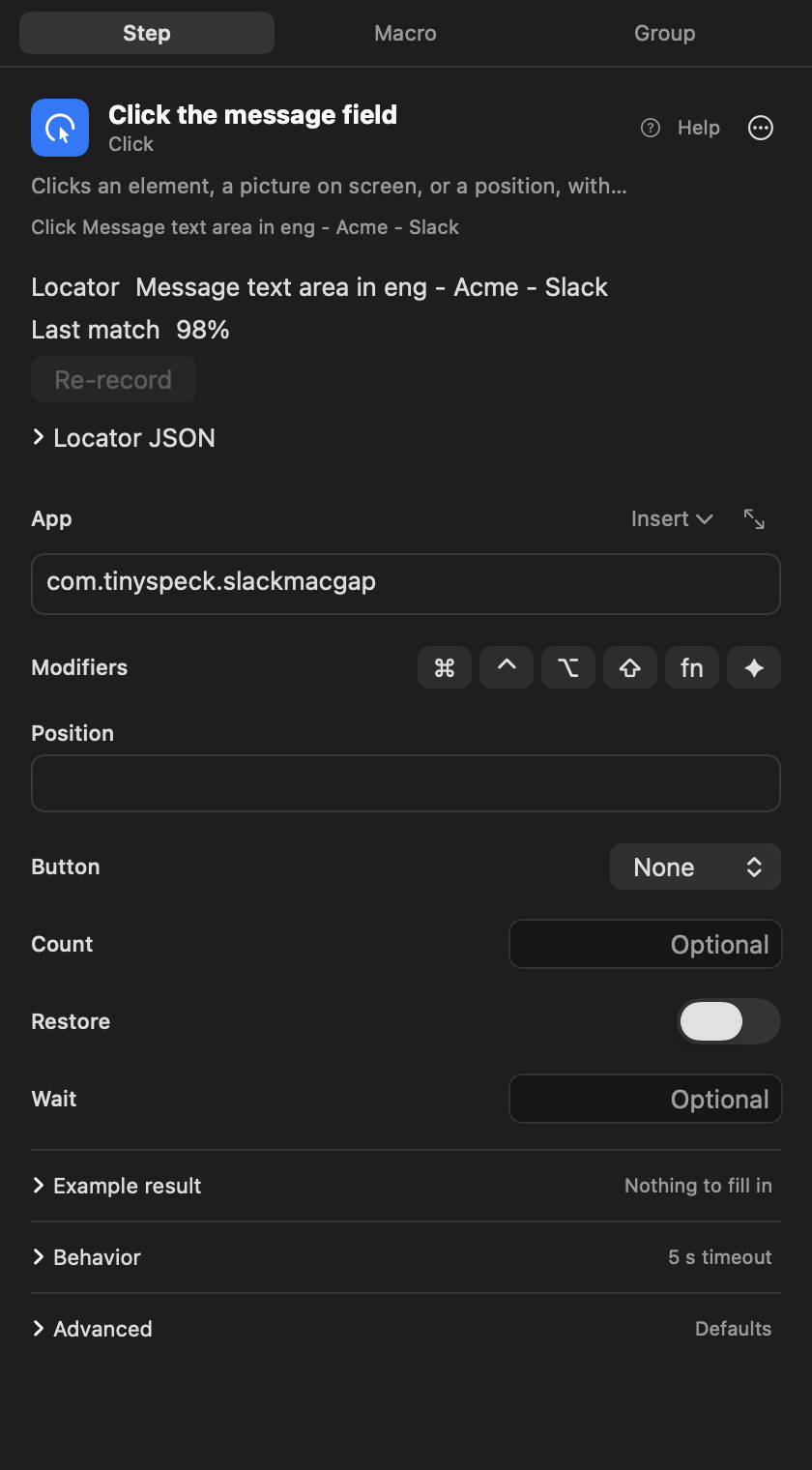
Record a click and Switchboard remembers the element: its role, its name, its identifier and its place in the window. When the macro runs it scores every element in the app against that description and clicks the best match, with fallbacks when nothing matches well enough. The score goes in the trace, which is how you find out an app update has started to break a macro.
Coming soon See pricing
What it does
You move the Slack window to your second display and make it narrower.
The click on Message field still lands, because the element’s position is measured inside its window and moving the window changes nothing.
An update renames the Send button to Send Now.
The recorded description now scores under 70%, so Switchboard tries the alternatives you kept. One built from role and title matches and the click lands. The trace says “matched through alternative 0”, which is your cue to re-record.
The app is still drawing its dialog when the macro reaches the click.
The step waits for the element to appear and be enabled, up to its timeout. It wakes as soon as the app reports a change and otherwise looks every quarter of a second.
Two windows of the same app both have a Save button.
The locator keeps the window’s title, so the macro clicks the Save in the window you recorded.
The app draws its own interface and exposes almost no elements.
Switchboard notices (“doesn’t describe its elements to Accessibility”), reads the text in the window and clicks the text it finds. The recorded position is a last resort, used only if the window is within 10% of its recorded size.
How it works
- Press ⇧⌘R and do the task once, or press Re-record on one step and click the element.
- Each click is saved with the element’s role, identifier, title, path, place in the window and alternatives.
- At run time 85% or better is a confident match. From 70% to 84% the click still lands, with a low-confidence note in the trace, and below 70% it tries the alternatives and then the text on screen.
- If Sign In button exists
- Show “Signed out”
- Else
- Show “Signed in”
Read the docs
- Finding things on screenHow Switchboard finds a button, field or picture in another app, how sure it has to be, and what it does when it cannot find it.
- DebuggingHow to find out why a macro did not run, why it failed and what it would do, using Activity, traces, dry runs and the command line.