Features › The small tools
The small utilities, built in
These are the utilities you would otherwise install one at a time: Paste as, a selection bar, click by letters, capture text, dictation, drop targets and a shelf, keep awake, the current thing and run on another Mac. Each is a shipped macro or a setting. You can change its key, copy it or turn it off. Capture text needs Screen Recording permission.
Coming soon See pricing
What it does
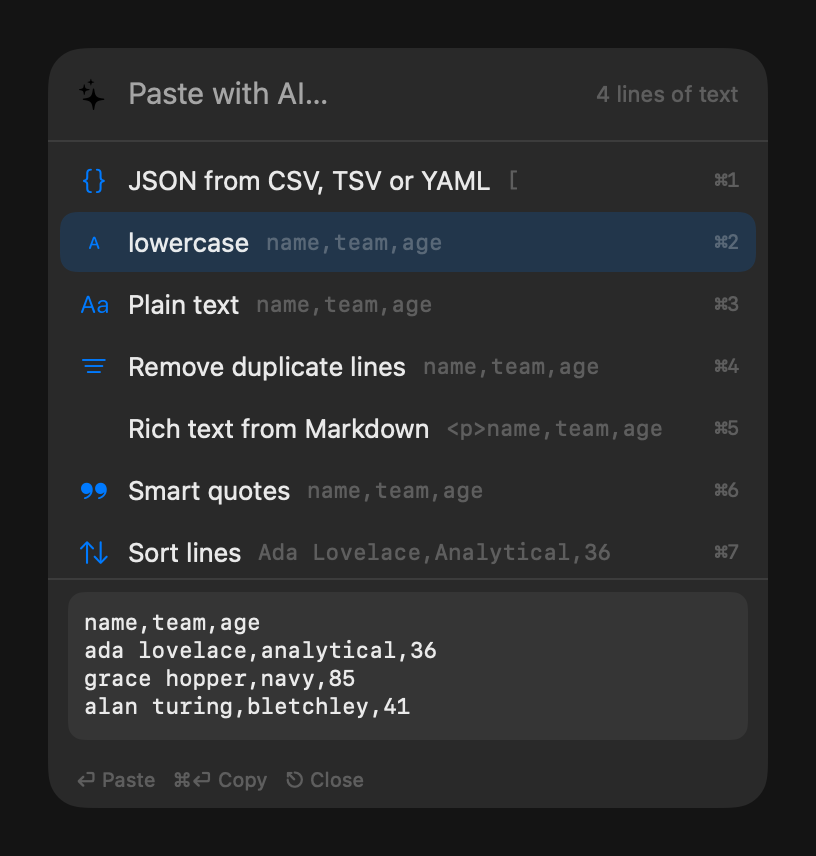
You copied a table from a web page and want Markdown.
Press ⌃⌥V where you would press ⌘V. A panel at the caret lists what the clipboard can become, each row with a preview: plain text, Markdown, JSON, text from an image. The field at the top takes “as a bullet list” or “in French”. Return pastes.
You select a tracking number in an email.
A slim bar appears above the selection with the icons that suit what the text is: Copy, Search, Open link, Rewrite, Paste as, and your own. Each icon is a macro that takes that kind of thing.
The button you need is a tiny icon in a toolbar.
Press ⌘⇧Space and a short label appears on every clickable thing in the front window. Type DF and that one is pressed; type a word and the labels narrow to elements whose title contains it.
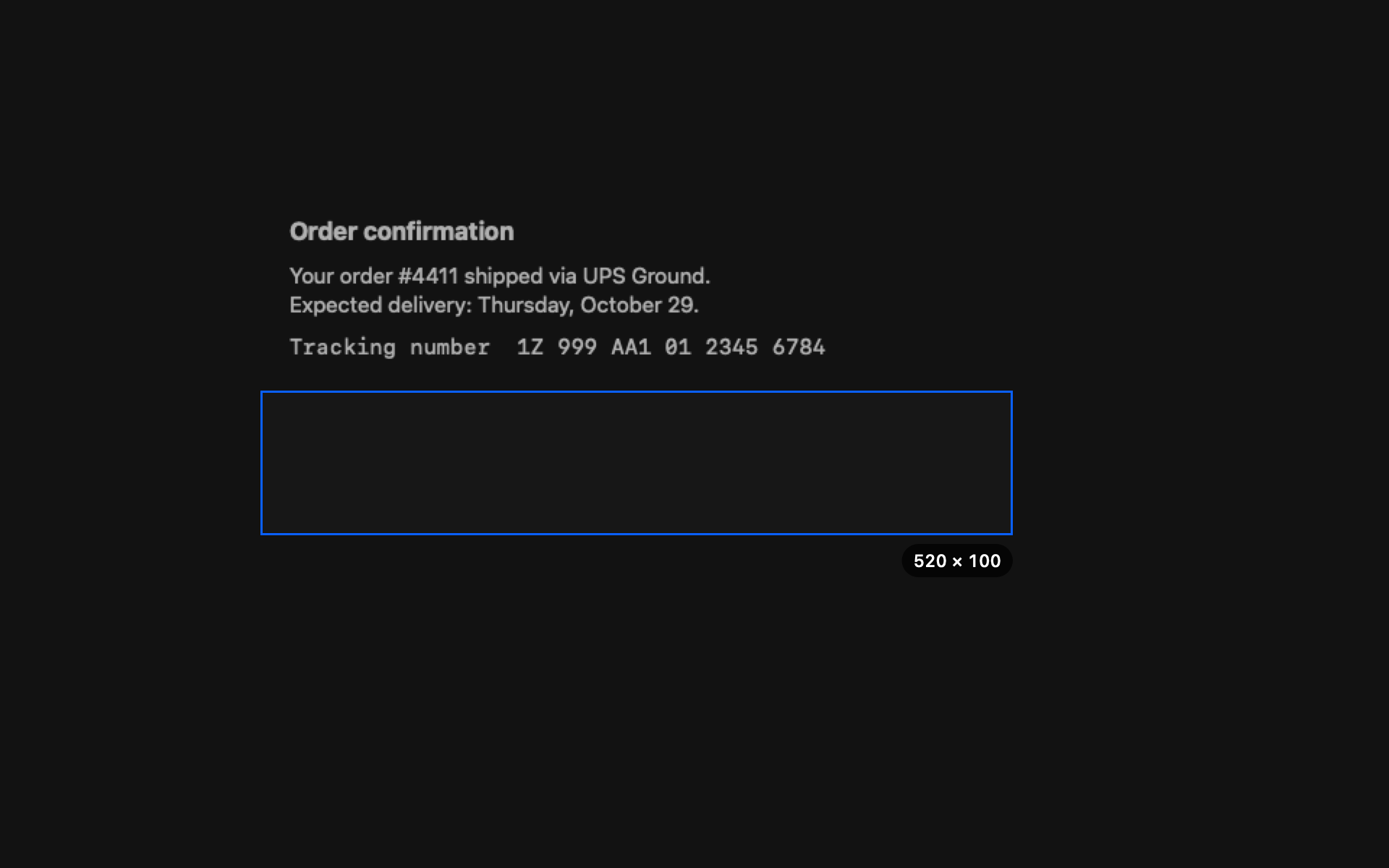
An error dialog has text you cannot select.
Press ⌃⇧2 and drag a box over it. The HUD says “Copied 4 lines” and the text is on the clipboard. Hold ⌥ as you let go to join the lines. A QR code gives you its link. It needs Screen Recording.
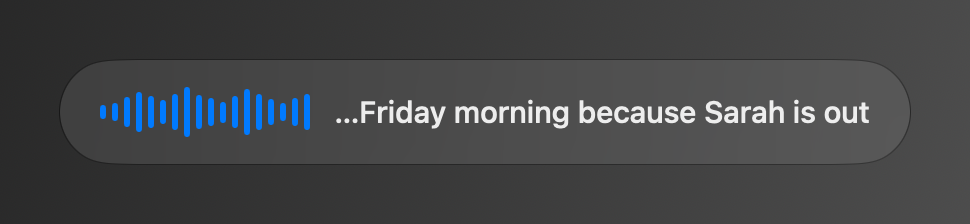
You want to answer a Slack message without typing it.
Hold Fn+Space and talk. A small waveform shows you are heard; let go and the words appear in the field, punctuated, with the “um”s gone. Recognition runs on the Mac. The cleanup can follow a style per app, such as “Slack: casual, no capitals”.
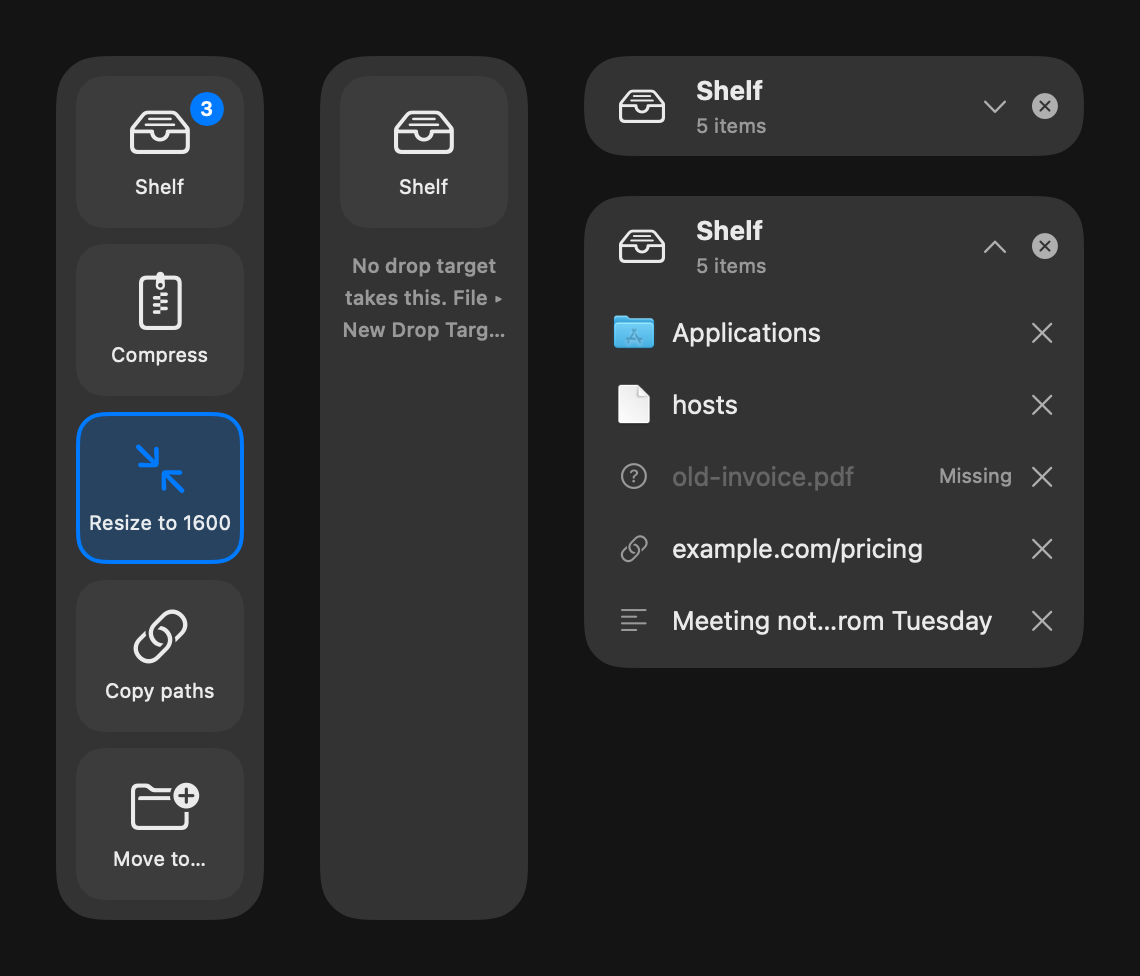
You drag a screenshot toward the right edge of the screen.
A column of targets slides out: Compress, Resize to 1600, Upload and copy link, AirDrop to iPhone. Drop on one and its macro runs on what you dropped. Drop on Shelf instead and the files wait there while you collect more.
Final Cut Pro is exporting and the Mac must not sleep.
A keep-awake step holds the Mac awake while Final Cut Pro is running, and a menu bar row says what it is waiting for. Below a battery floor of 20% the hold ends, and a HUD says so.
The selected text reads ABC-123.
Press ⌃⌥Space, or hold ⌥Space. Actions for This shows a card for the Jira ticket you taught it (“ABC-123 is a ticket”) and only the macros that take a ticket, best first.
The recording for tonight lives on the Mac Studio.
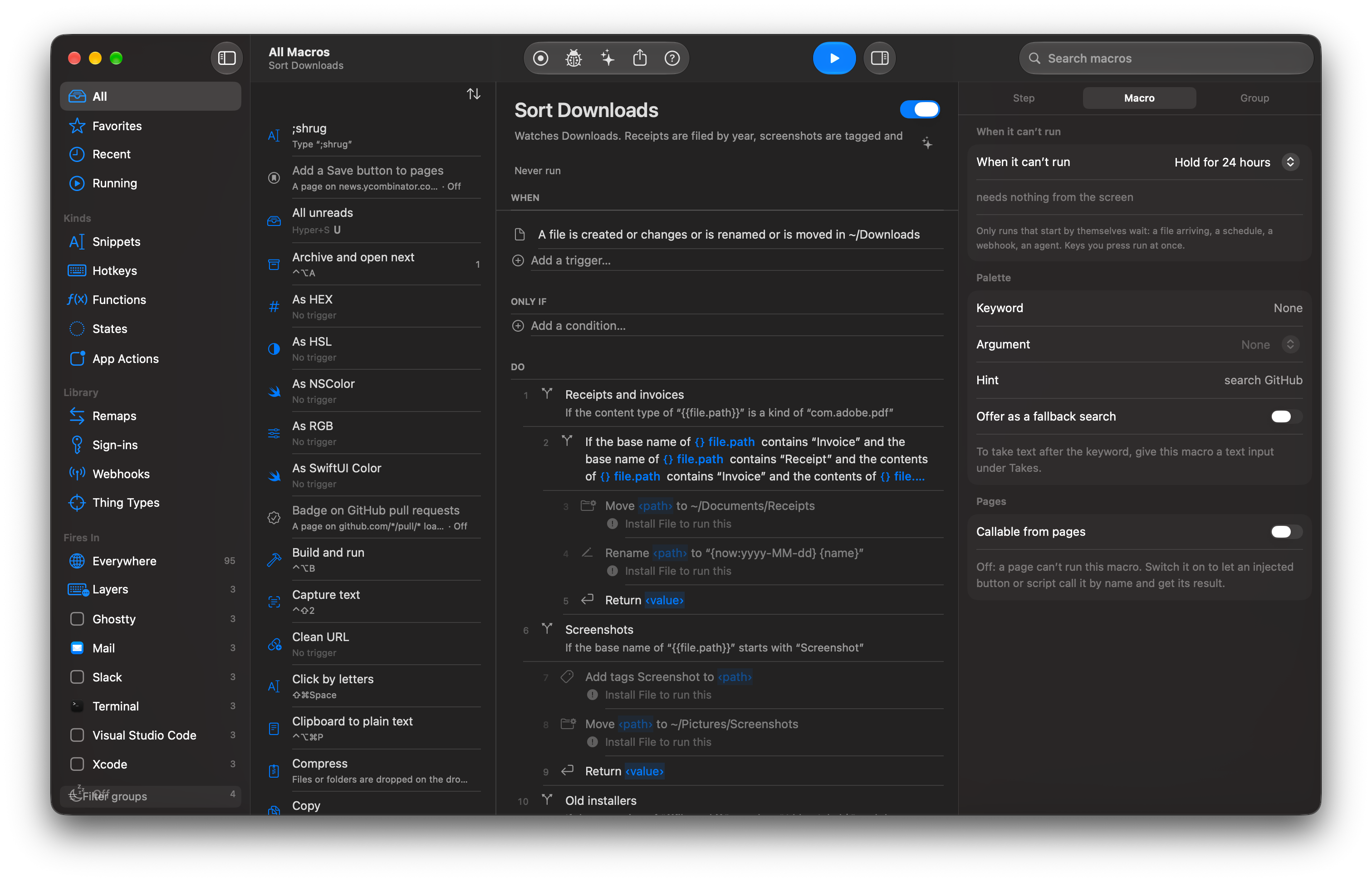
Type studio in the palette and choose Run on Mac Studio, or set the target on a Run macro step. The macro runs there and the result comes back. If the other Mac is asleep, the request waits.
How it works
- Each tool has a default key you can change. Hold-to-talk is Fn+Space, capture text is ⌃⇧2, click by letters is ⌘⇧Space, paste as is ⌃⌥V.
- Each action is a macro that takes the kind of thing in front of you, so adding your own is making a macro.
- Turn off what you do not want. Each one is a macro or a setting like any other.
Read the docs
- Keyboard shortcutsEvery keyboard shortcut in Switchboard's menus and panels, and the key spec syntax used by Press keys and hotkey triggers.
- Getting startedInstall Switchboard, finish the first-run Welcome, grant the two permissions it needs and run your first macro.