Features › The palette
A command palette with snippets and a clipboard history
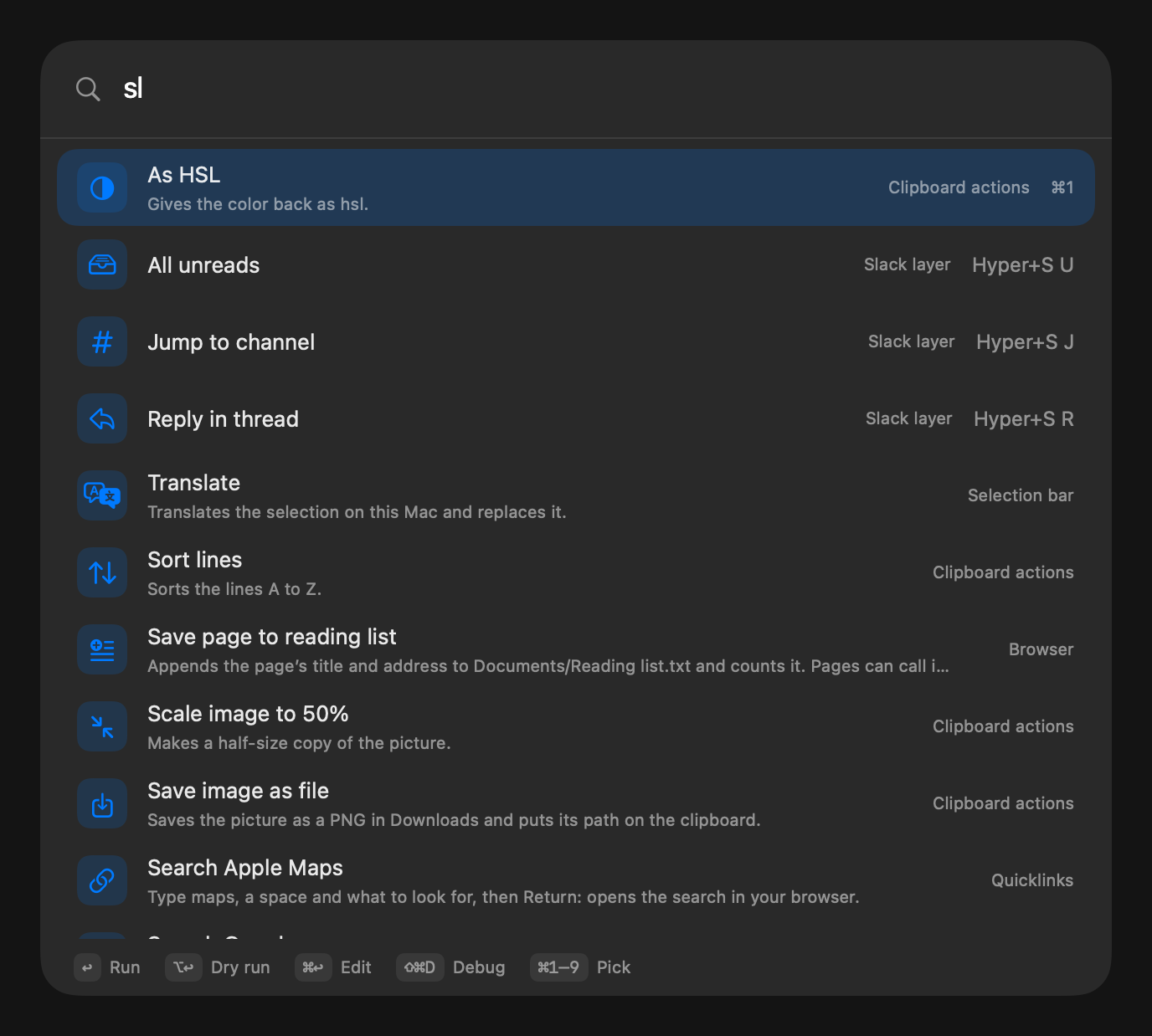
⌥Space opens a palette over whatever you’re doing. It lists your macros, apps, the front app’s menu commands, quicklinks, a calculator and system commands, and it learns which row you meant when you type an abbreviation. Hold the key to act on what you’ve selected, and press → to step into a row. Snippets and the clipboard history have their own keys. Window snapping isn’t here; I left that to Raycast and Rectangle.
Coming soon See pricing
What it does
You type saf and press Return.
Safari opens. Choose a row once for an abbreviation and that row comes first for it next time, whatever kind of row it is.
In Safari you type export.
A row reads File ▸ Export as PDF… · Safari. Return chooses it. ⌘↩ writes a macro with a hotkey for that menu item, so something you keep doing turns into a key in one step.
You make a quicklink called gh with a GitHub search address.
Type gh swift actors and the search opens. If nothing matches what you type, the rows are Search Google for it, Search GitHub for it and Make a macro.
You type ;addr in any app.
Your address replaces it, in any app and never in a password field. A snippet can ask for fields first (Tab moves between them), put the caret where {{cursor}} is, and fill in dates and the clipboard.
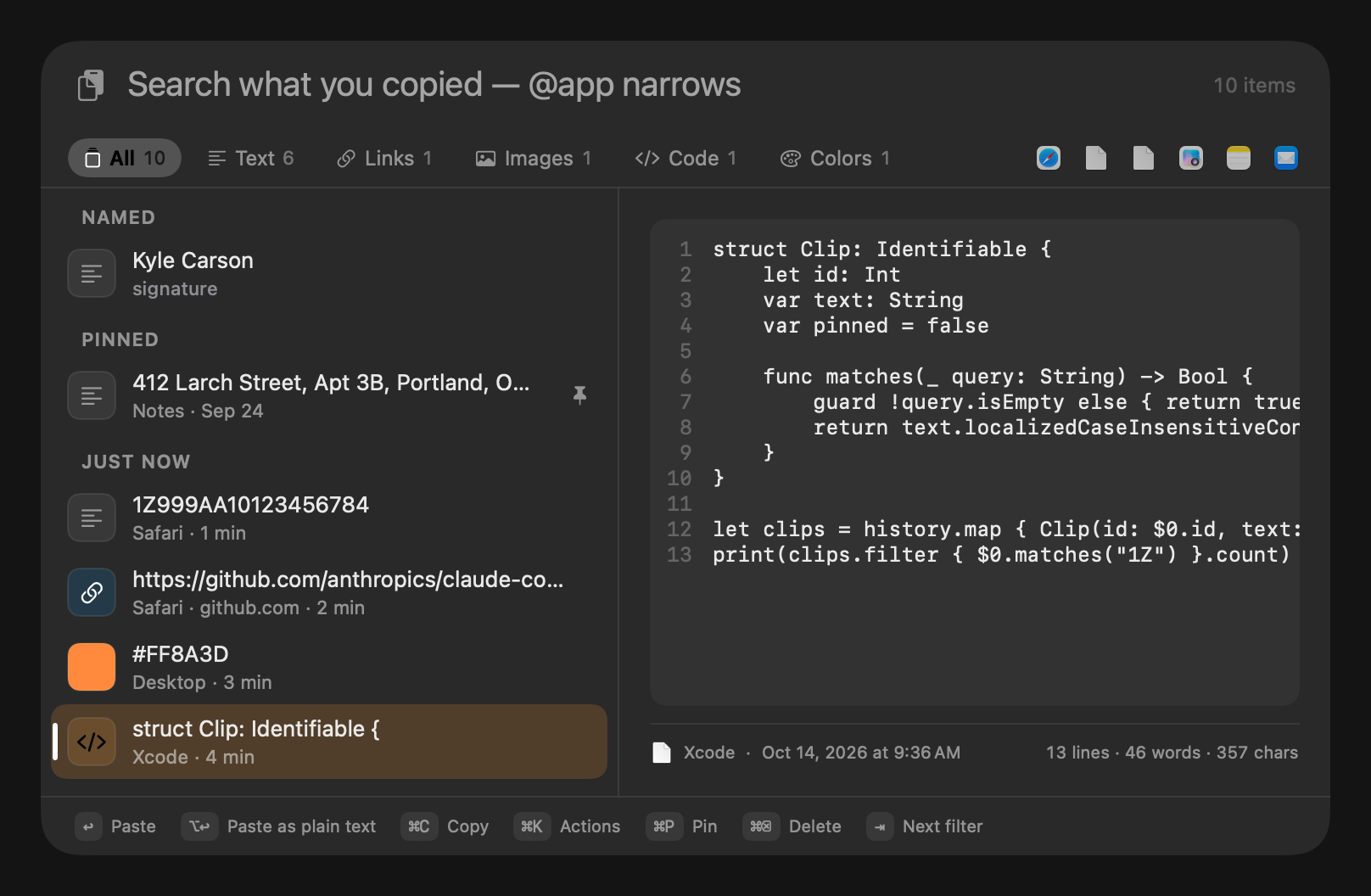
You copied a tracking number, then two other things.
Press ⌃⌥⌘V, type 1Z and press Return, and it pastes. ⌥↩ pastes as plain text, ⌘P pins a copy, and adding @safari shows only what you copied in Safari.
How it works
- Press ⌥Space and type part of a name. ↑ and ↓ move, ⏎ runs a row, ⌥⏎ is its second action, ⌘⏎ opens a macro in the editor.
- Choose File › New Snippet (⌃⌘N), type an abbreviation and the text. It works at once.
- Press ⌃⌥⌘V for the clipboard history. Both hotkeys can be changed in Settings › General.
- Type “;hi”
- Type “Hi {{ask:Name|there}},⏎⏎{{cursor}}⏎⏎Thanks, Sam”
Read the docs
- Getting startedInstall Switchboard, finish the first-run Welcome, grant the two permissions it needs and run your first macro.
- SnippetsType a short abbreviation and Switchboard replaces it with a longer text: fields to fill in, a caret position, the date, the clipboard.
- Keyboard shortcutsEvery keyboard shortcut in Switchboard's menus and panels, and the key spec syntax used by Press keys and hotkey triggers.
- Coming from TextExpander or AlfredImport snippets from TextExpander, Alfred, Raycast or macOS Text Replacements, and how their placeholders map to Switchboard's snippet tokens.